Guide
Every screen, explained.
A walk through CoDriver one screen at a time: what each control is, what it does and how to use it on a drive.
Start here
Sign in once.
An account is how your friends find you and how the convoy knows which car is yours. It takes about a minute.
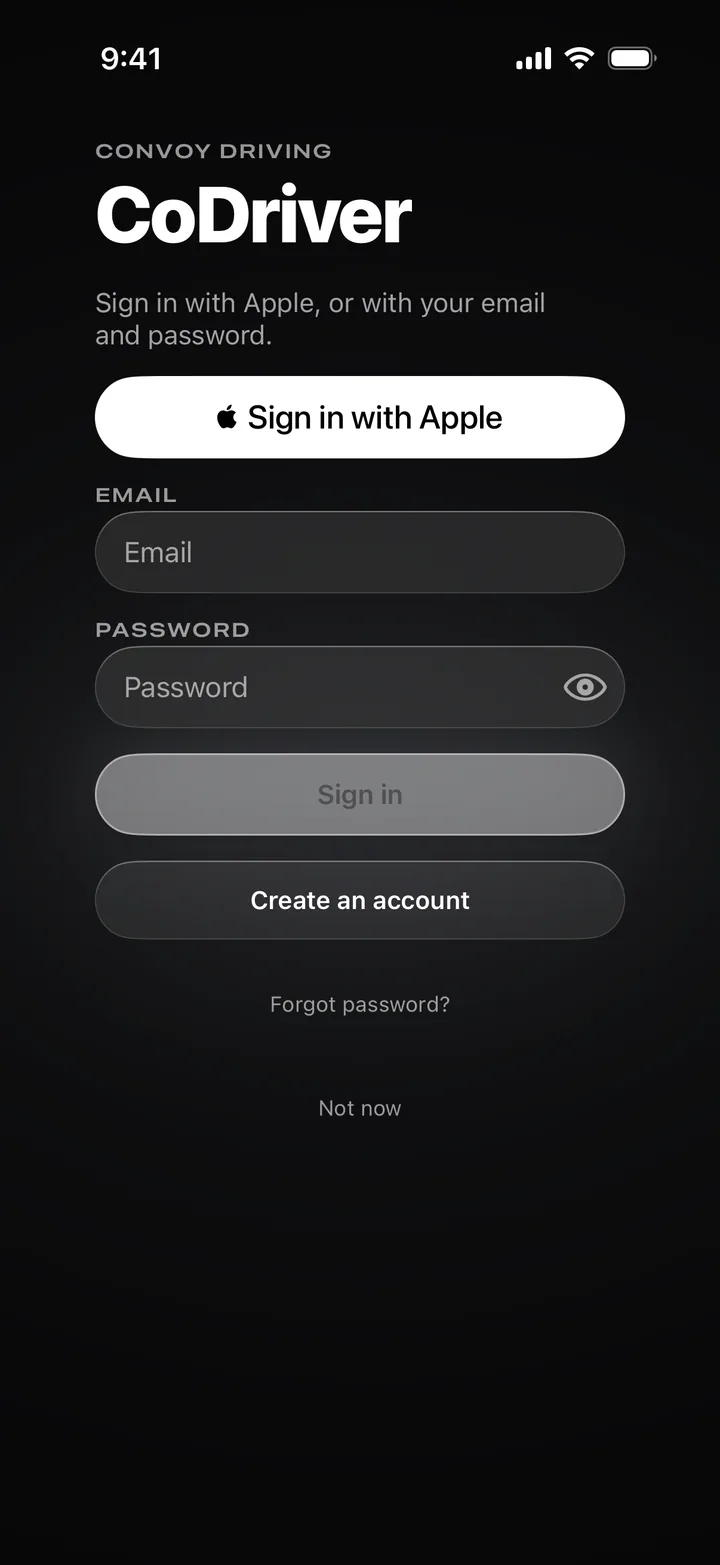
Sign in with Apple
The quickest way in. The first time, you choose a display name and a handle, and the account is made.
Email and password
Already have an account? Sign in here. If you turned on Email code on sign-in, a 6-digit code is sent to your email as a second step.
Create an account
Pick a display name, a handle, an email and a password, then confirm with the code we email you. Your handle is how friends find you, and it can’t be changed later.
Not now
Skip signing in and use the map, search and directions on your own. Convoys and friends need an account, and a banner offers Sign in now whenever you’re ready.
Friends and crews
Bring your people.
Friends are the people you can call into a convoy. A crew is a group of them you drive with often, kept under one name. Open this page with the two-person button on the map.
Activity
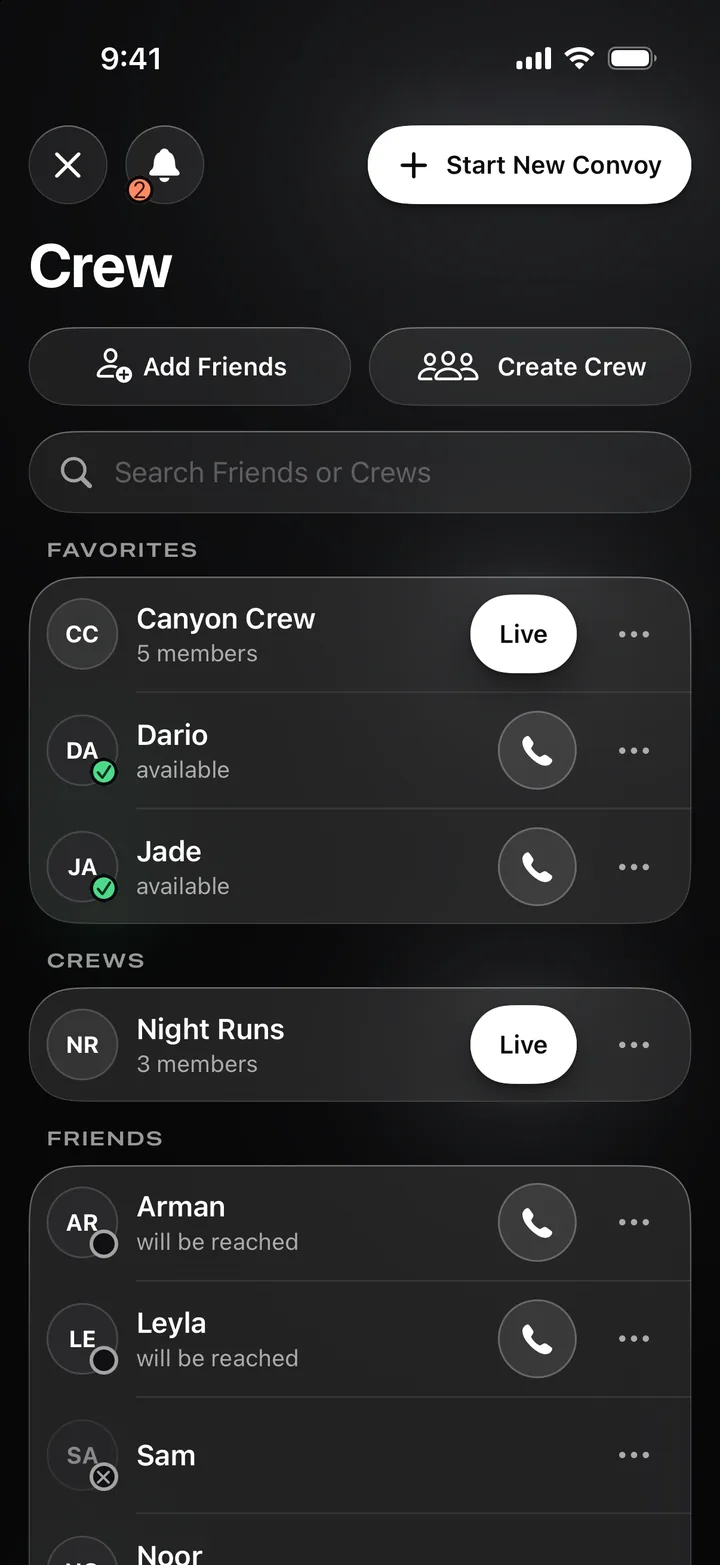
The bell holds friend requests and crew invites that are waiting for your answer, and drives shared with you. The badge counts what still needs a reply.
Add Friends
Search for someone by their handle and tap Add. The request lands in their bell, and once they accept they join your list.
Search
Filters your friends and crews by name.
Status
A green tick: available now. An open ring: their app is closed, but an invite will still ring their phone. A crossed ring: they can’t be reached.
Start New Convoy
Name the convoy and tap Start. Everyone you invite will see your location until you leave.
Create Crew
Name the crew and choose which friends to invite. It starts with only you, and people join as they accept.
Live
This crew has a convoy running right now. Open the crew to join it.
Invite
One tap rings that friend like a phone call, for 45 seconds. Answering joins them to your convoy. If you aren’t in one yet, it is started for you.
More
Add someone to your favourites, or remove, report or block them. Favourites sit at the top of the page; hold and drag to reorder them.
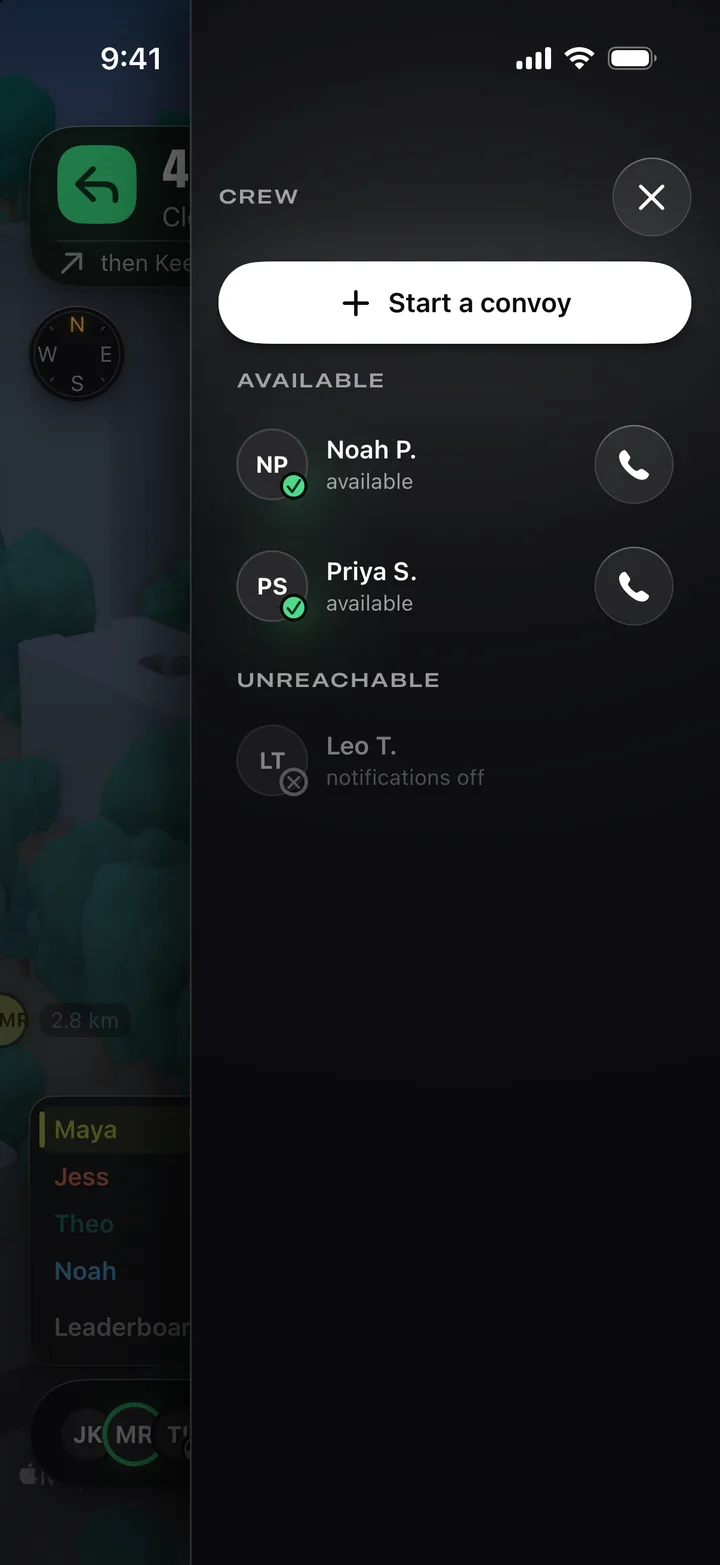
On the map, swipe in from the right edge for the crew drawer.
Start a convoy
Not in a convoy yet? Name one and start it without leaving the map.
Available
Friends who can be rung right now. Tap the phone to invite one.
Unreachable
A friend with notifications off can’t be rung, so there is no call button.
On the road
The drive screen.
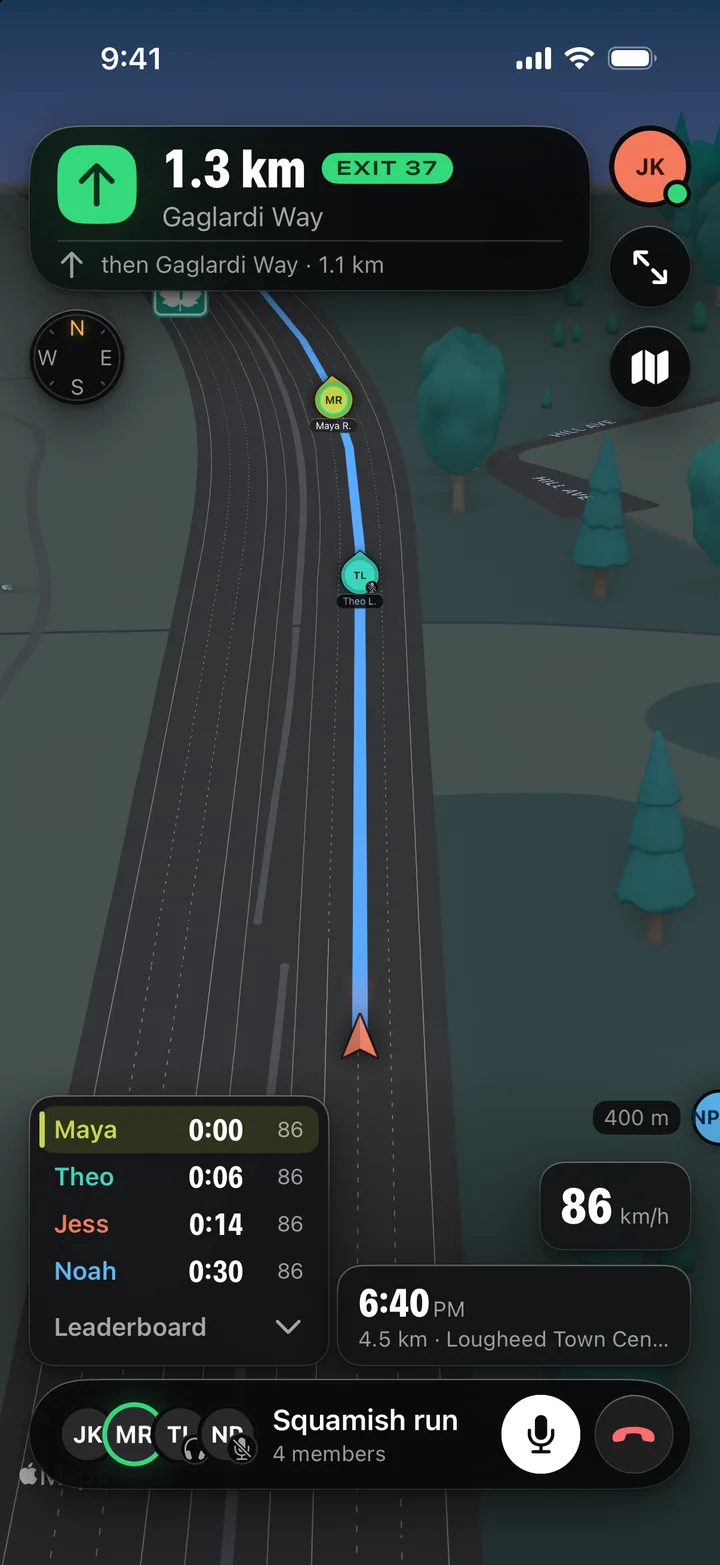
Everything you need while moving is on one screen: the next turn, every car in the convoy and who is in front.
Next turn
The distance to your next manoeuvre, the road it puts you on and the exit number, with the turn after it underneath.
Compass
Shows which way the map is facing. Tap it for the full compass.
Leaderboard
Every car in order, with its time behind the front car and its speed. Fold it away with the chevron.
Convoy bar
Who is in the convoy, with a ring around whoever is talking. Tap it to open the convoy panel.
You
Tap for your profile, drives and settings. Hold it to set yourself Online, Busy or Invisible.
Whole convoy
Zooms out to fit every car on the screen. Tap again to go back to following your own.
Map style
Turns 3D and traffic on or off.
Convoy members
Each car is drawn live in its driver’s colour, with their initials and the way they’re heading.
Off-screen car
When a car leaves the screen, its driver peeks in from the edge with the distance, so you know which way they are.
Speed
Your current speed, in km/h or mph to match your phone’s region.
Arrival
When you’ll arrive, how far is left and where you’re going.
Leave
Leaves the convoy straight away: your voice disconnects and your car comes off everyone’s map.
Microphone
Mutes and unmutes you. There is no push-to-talk: while it’s on, just speak.
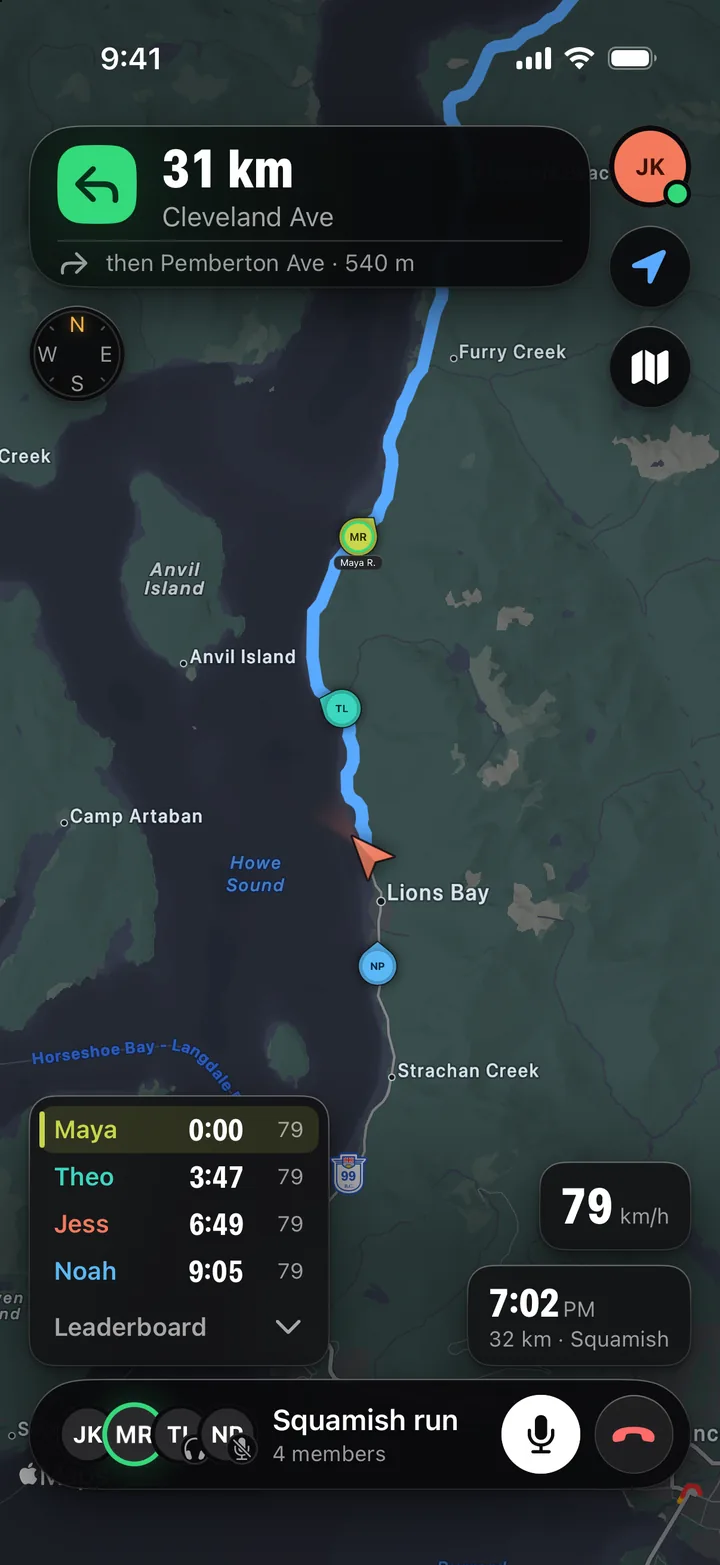
Tap Whole convoy and the map pulls back to show everyone.
You
Your own car stays the arrow, wherever the camera goes.
Gaps
With the convoy spread out, the leaderboard shows how many minutes each car is behind the front.
Follow me
Returns the camera to your own car.
Every car
The map is framed to hold the whole convoy, from the leader to the last car.
Voice
Talk, and tune who you hear.
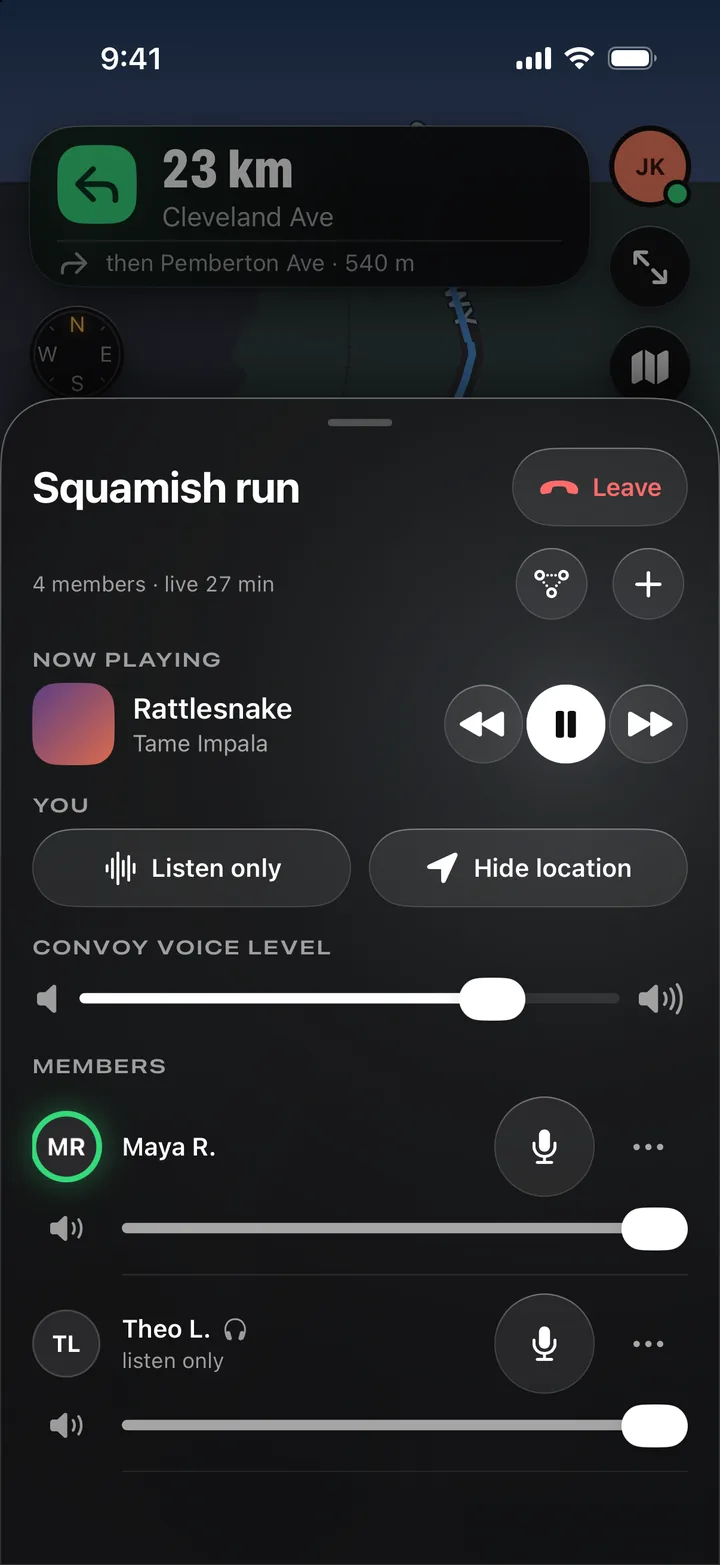
The channel is open for the whole drive and sends only when you speak. Tap the convoy bar to open the panel, where you set how the convoy sounds.
Convoy
The convoy’s name, how many people are in it and how long it has been live.
Now playing
Your music keeps playing under the voices. Pause or skip it here without leaving CoDriver.
Listen only
Mutes your side while you still hear everyone. The others see headphones beside your name.
Voice level
How loud the convoy’s voices are for you, all together.
Talking
A green ring lights around a member while they speak.
Volume
Turns one person up or down. It changes only what you hear.
Leave
Leaves the convoy.
Invite
Opens the crew drawer to ring more friends into the convoy.
Meet in the middle
Finds a fair place for everyone to stop.
Hide location
Takes your car off everyone’s map while you stay on the voice channel. It also pauses the recording of your drive.
Mute
Silences that member for you alone.
More
Report or block a member.
Routes
One destination, every car.
The convoy’s leader picks where everyone is going, and each car gets its own turn-by-turn directions there. Anyone can also route just themselves.
Where to?
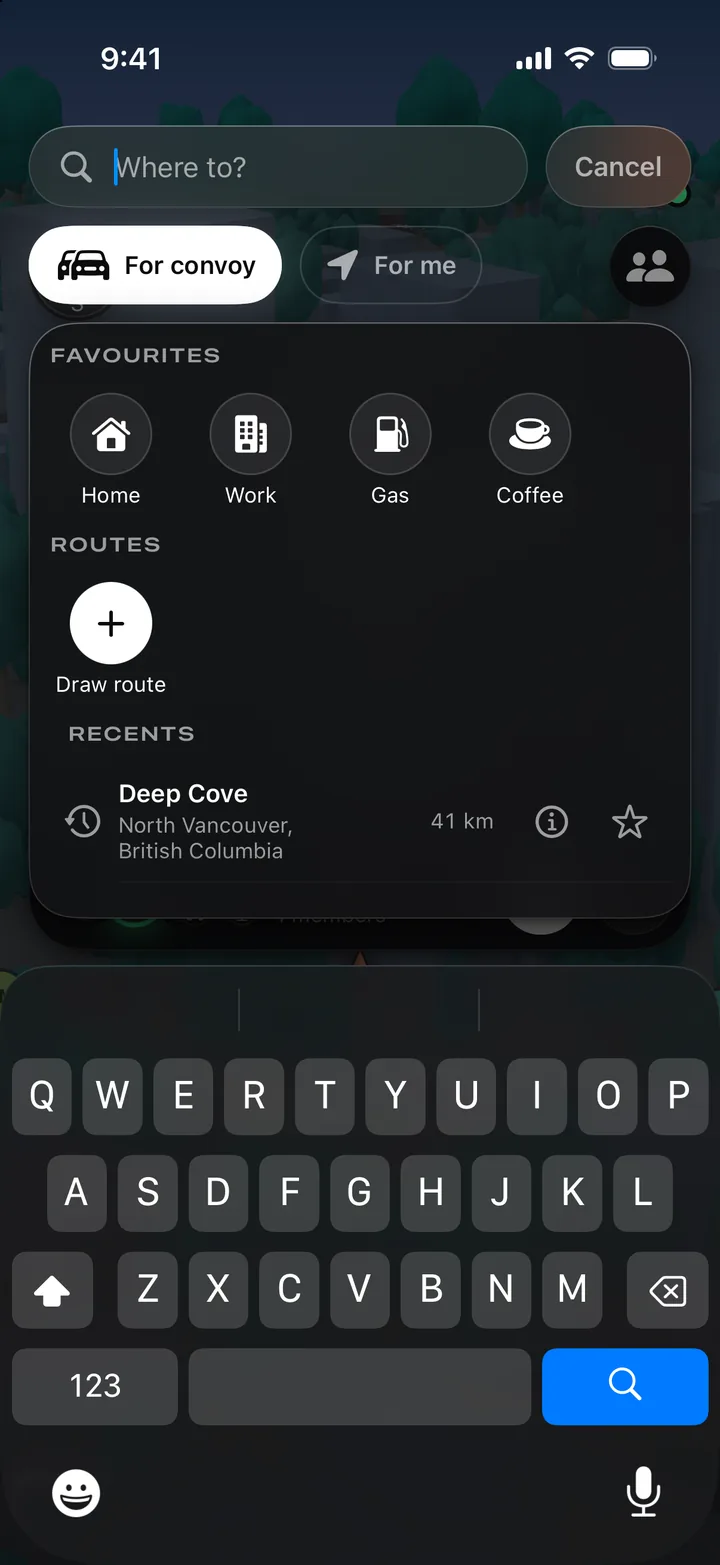
Search for a place or an address. Each result has an info button and a star to save it.
Who it’s for
The leader chooses whether a destination is for the whole convoy or only their own car. Everyone else routes themselves, and can suggest their destination to the leader.
Favourites
Places you’ve starred, each with a name and an icon you choose. Hold one to edit, share or remove it; hold and drag to reorder.
Draw route
Draw your own road in place of the fastest one. Routes you’ve saved sit beside it: tap one to preview it, hold it to edit, rename, share or delete it.
Recents
The last places you routed to. Swipe one away to forget it.
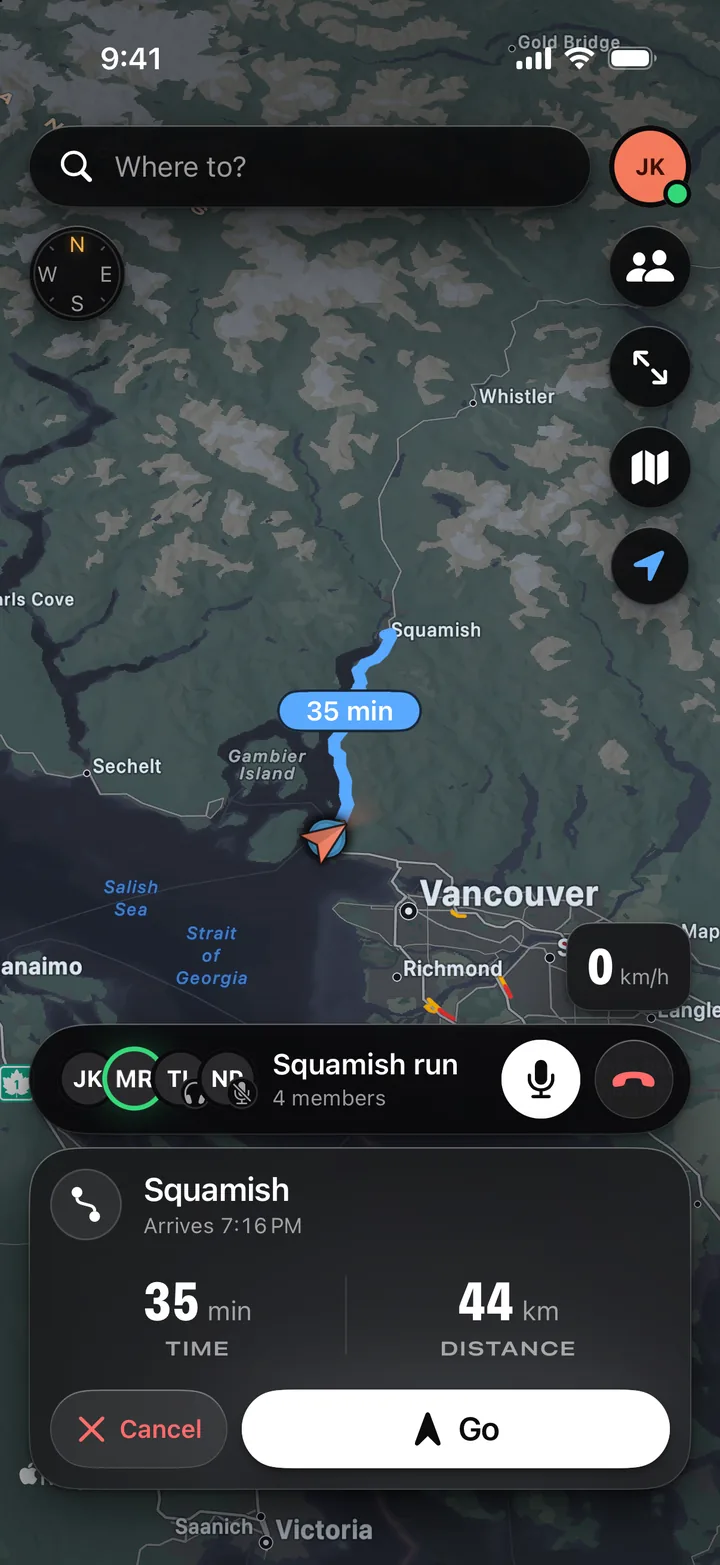
Choose a place and CoDriver draws the way there first.
Routes
Each possible route is drawn with its drive time. Tap another one to choose it.
The trip
Arrival time, drive time and distance for the route you’ve picked.
Go
Starts directions. Nothing is sent to the convoy until you tap it; then every car gets the route, with nothing to accept.
Meet in the middle
A fair place to stop.
When the convoy is scattered, CoDriver finds a stop that is fair to everyone, by real drive times. Open it from the convoy panel.
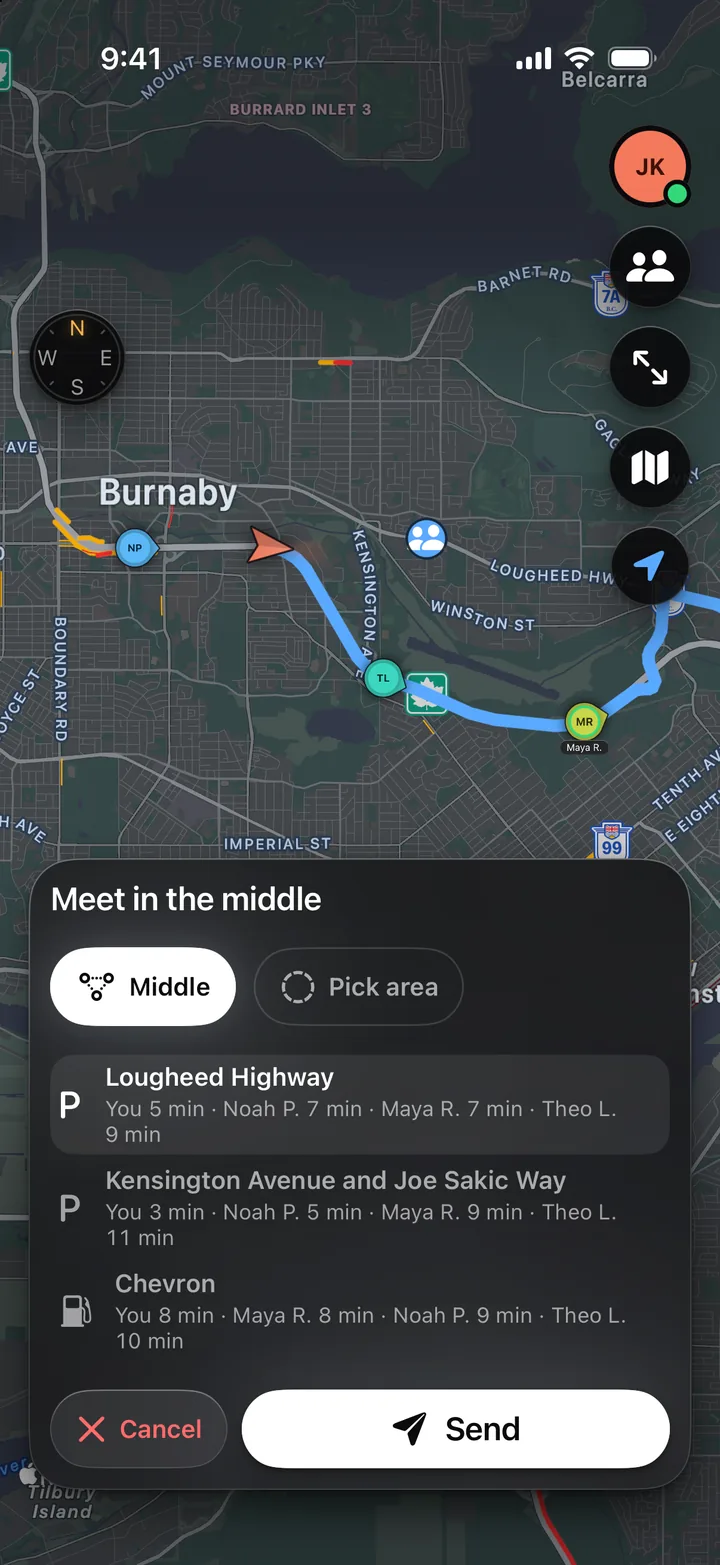
Middle
Searches around the point that is fairest for every car.
Places
The three best stops nearby, chosen from parking, fuel and coffee.
Drive times
Each place lists how long every driver needs to get there.
Cancel
Closes it without sending anything.
The convoy
Every car stays on the map while you choose.
Pick area
Prefer another part of town? Move and zoom the map until the ring covers it, then search that area.
Send
Routes you there and proposes the stop to the convoy. Each driver taps Go or declines, and you see who is coming.
Custom routes
Draw your own road.
For the scenic way, not the fastest one: place checkpoints and CoDriver routes through them in order. Start from Draw route in search.
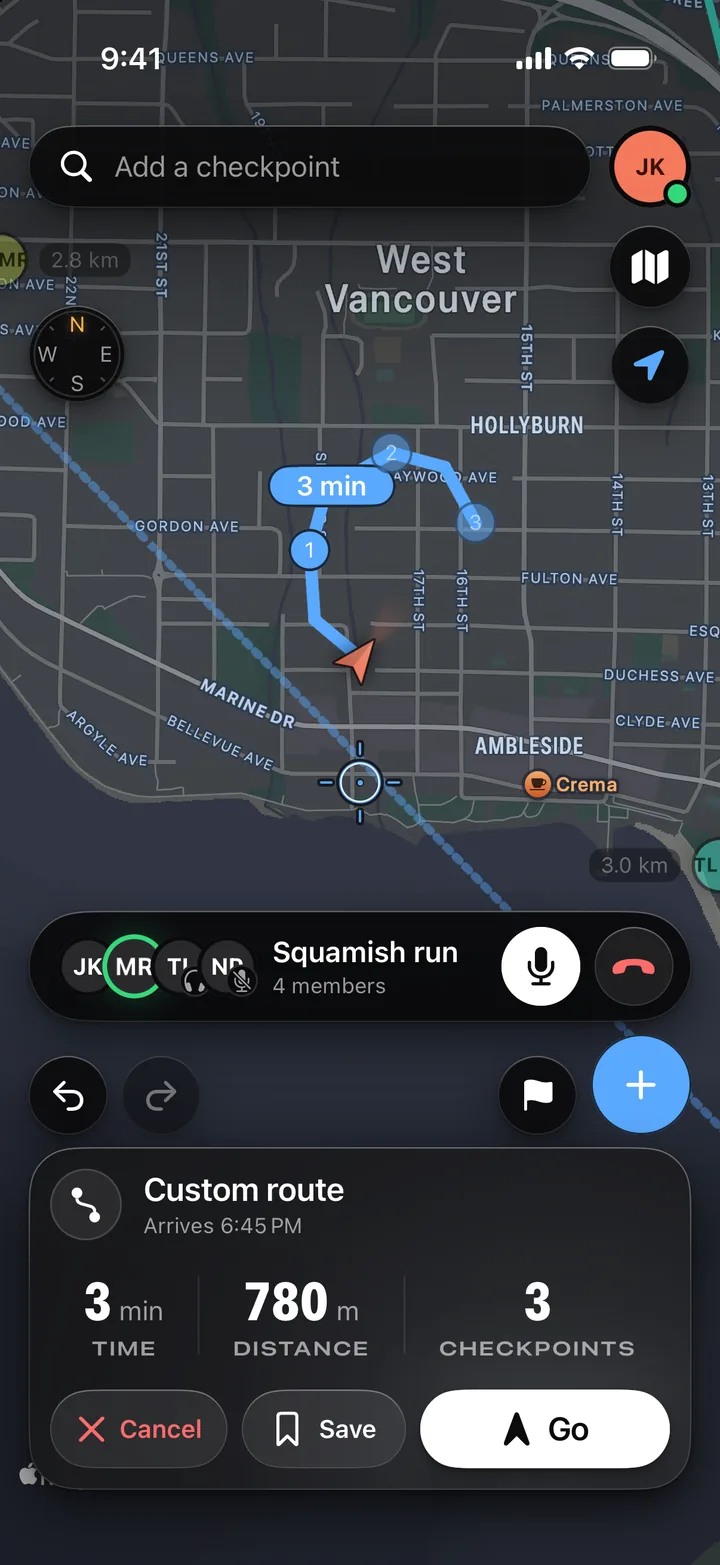
Search
Find a place and add it as a checkpoint or a flag.
Checkpoints
The route runs through your checkpoints in order. Tap one to reorder, move or remove it.
Crosshair
Move the map until the crosshair sits where the next checkpoint should go.
Undo and redo
Step back or forward through your changes.
Totals
Drive time, distance and the number of checkpoints so far.
Save
Keeps the route under Saved routes in your profile, ready to drive again or to share.
Flag
Marks a spot to steer by without making it part of the route. Hold the button to clear every flag.
Add
Drops a checkpoint under the crosshair.
Go
Starts directions along your route.
CarPlay
On the car’s screen.
Plug in and the convoy moves to the dash: the same map, the same route and the same voices, with the phone in your pocket.
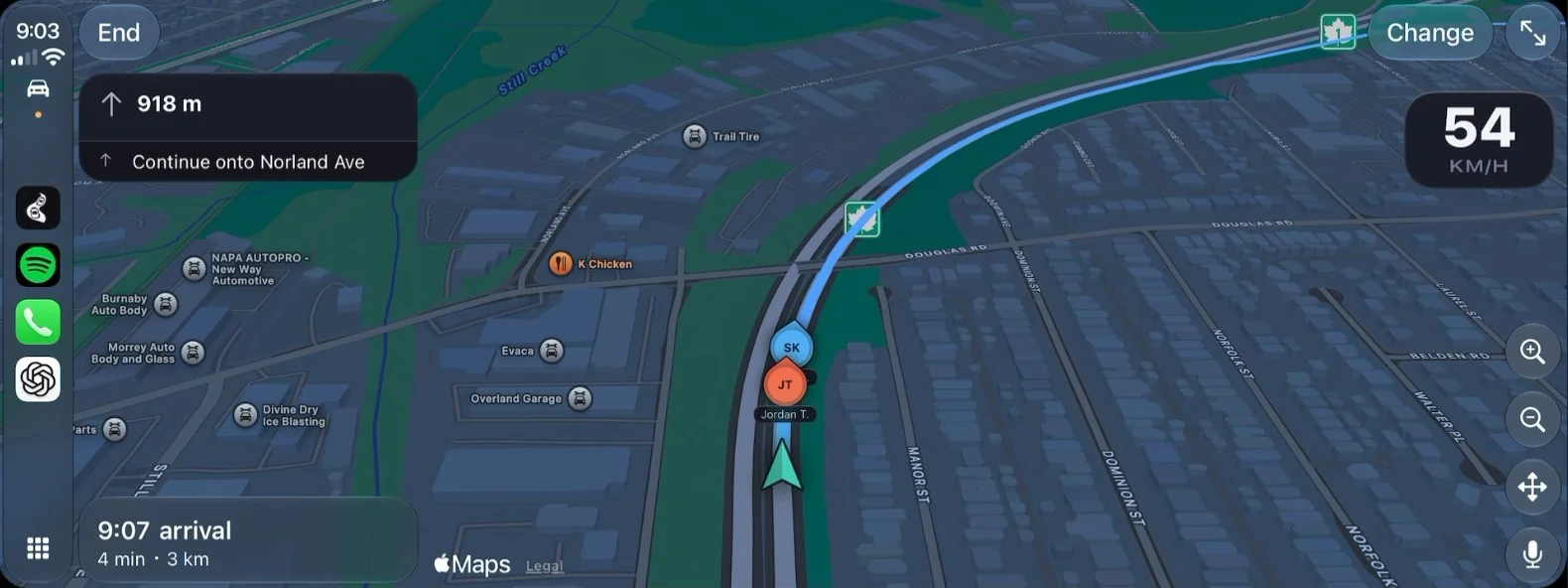
End
Ends the route you’re on.
Next turn
The distance to the next manoeuvre and the road to take.
Convoy
Everyone rides on the car’s map as they do on the phone.
Arrival
Arrival time, time left and distance.
Change
Pick a new destination: search, saved places, saved routes, recents or where the convoy’s members are heading.
Whole convoy
Switches between following your car and fitting the whole convoy.
Speed
Your current speed. Hide it with Speed in CarPlay in Settings.
Zoom and pan
Zoom in, zoom out and move the map.
Microphone
Mutes and unmutes you while you’re in a convoy.
Drive history
Every drive, kept.
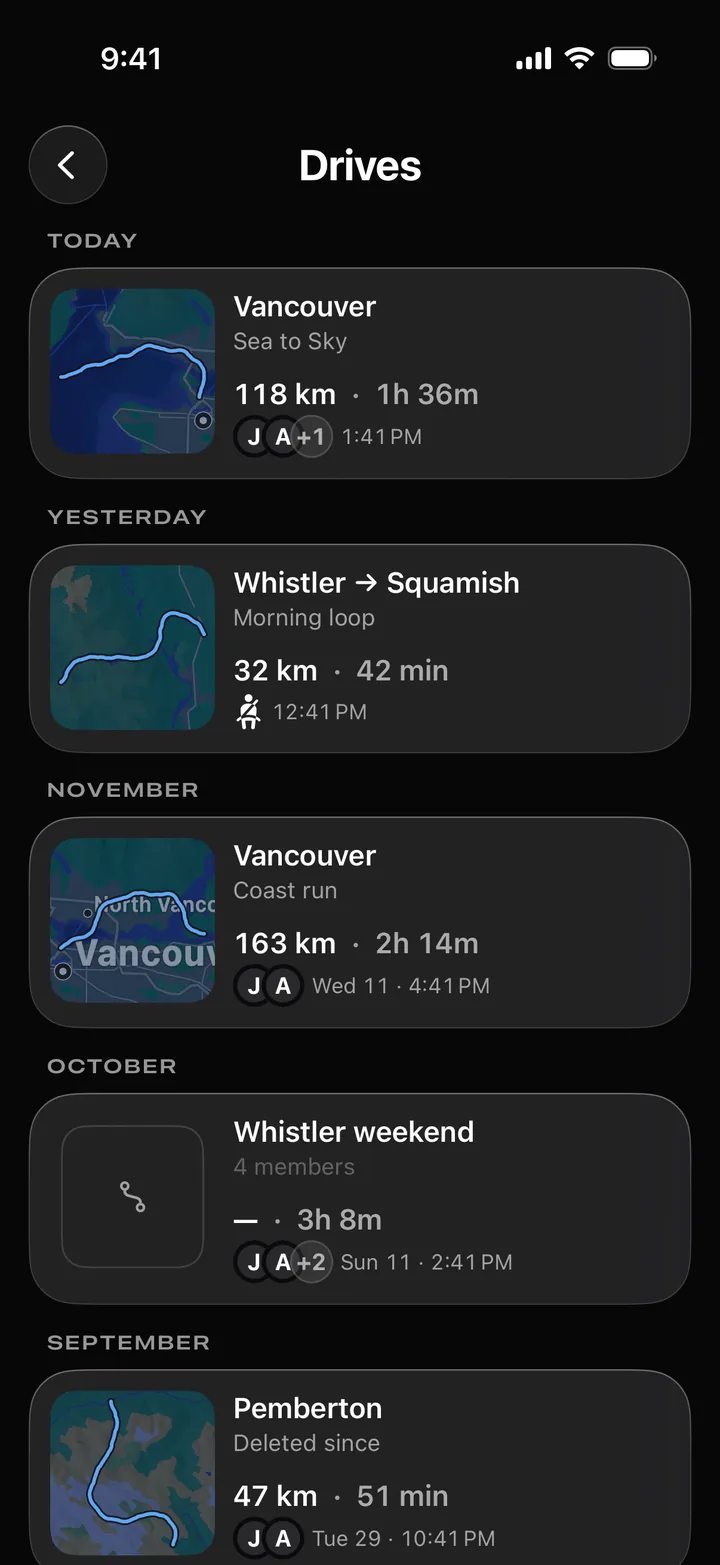
CoDriver records each drive by itself, in a convoy or alone, and keeps it under Drives in your profile.
The road
A card shows the road you took on its own small map. Hold a card to share the drive or remove it from your history.
When
Drives are grouped by today, yesterday and then by month.
Solo drive
A seat-belt figure marks a drive you made alone. Faces mark a convoy.
Distance, time
How far the drive went and how long it took.
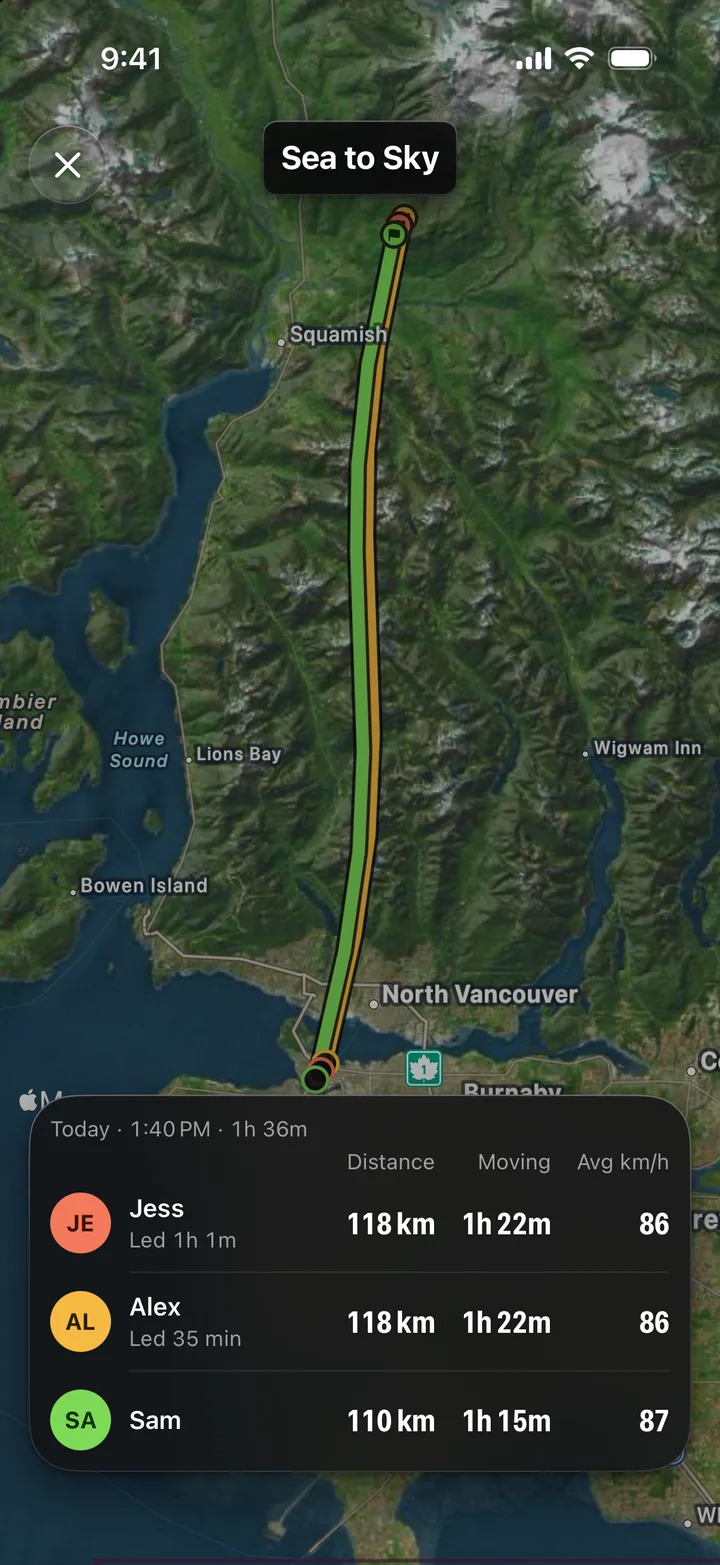
Tap a drive to open it.
The drive
The drive’s name, over a satellite map of where it went.
Every car
Each driver’s line in their own colour, from start to finish. Double-tap the map to fit the whole drive again.
Each driver
Distance, time moving and average speed for every car, and how long each one led.
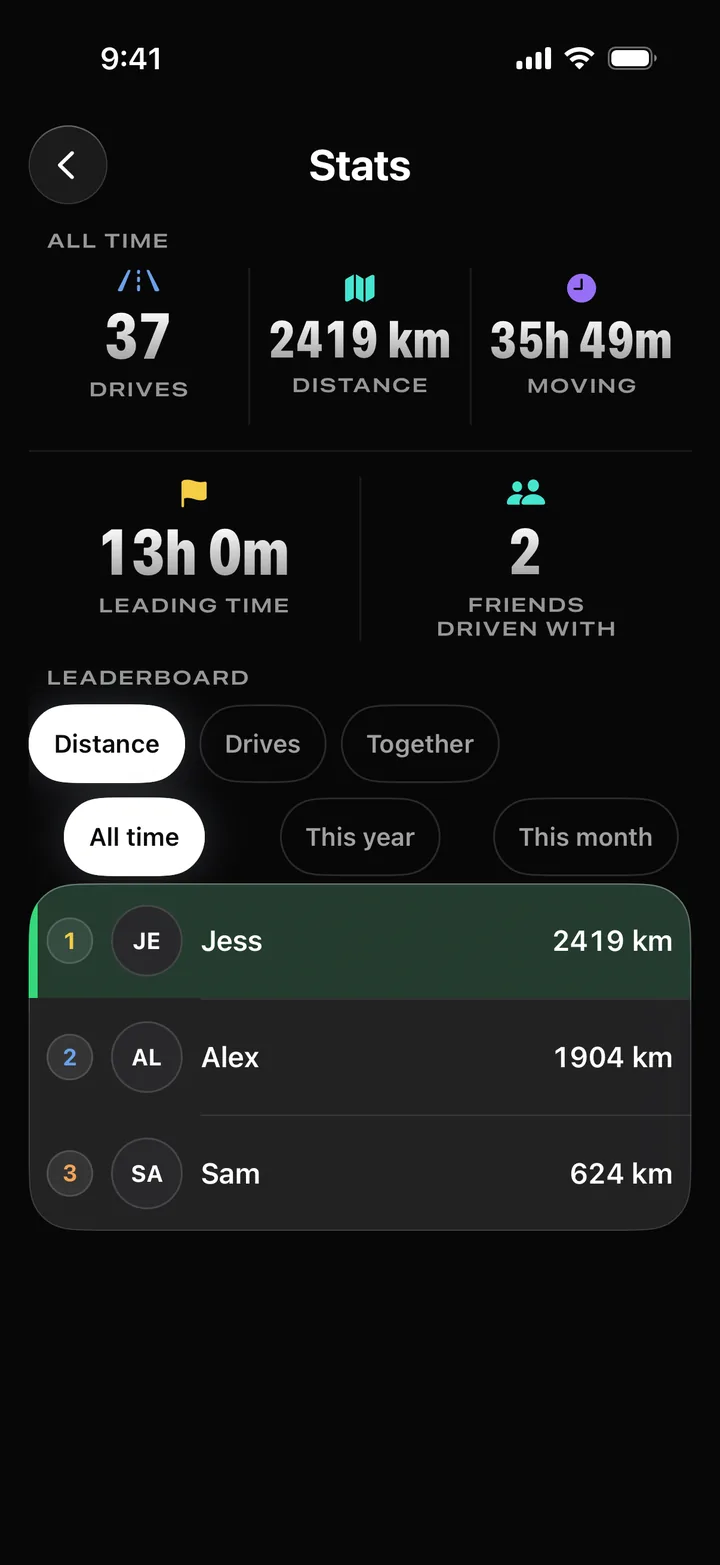
The chart button on Drives opens your totals.
All time
Your totals: drives, distance and time moving.
Leading
How long you’ve been the car in front, and how many friends you’ve driven with.
Rank by
Compare yourself with your friends by Distance, Drives or Together.
Period
All time, this year or this month.
Standings
Your own row is highlighted.
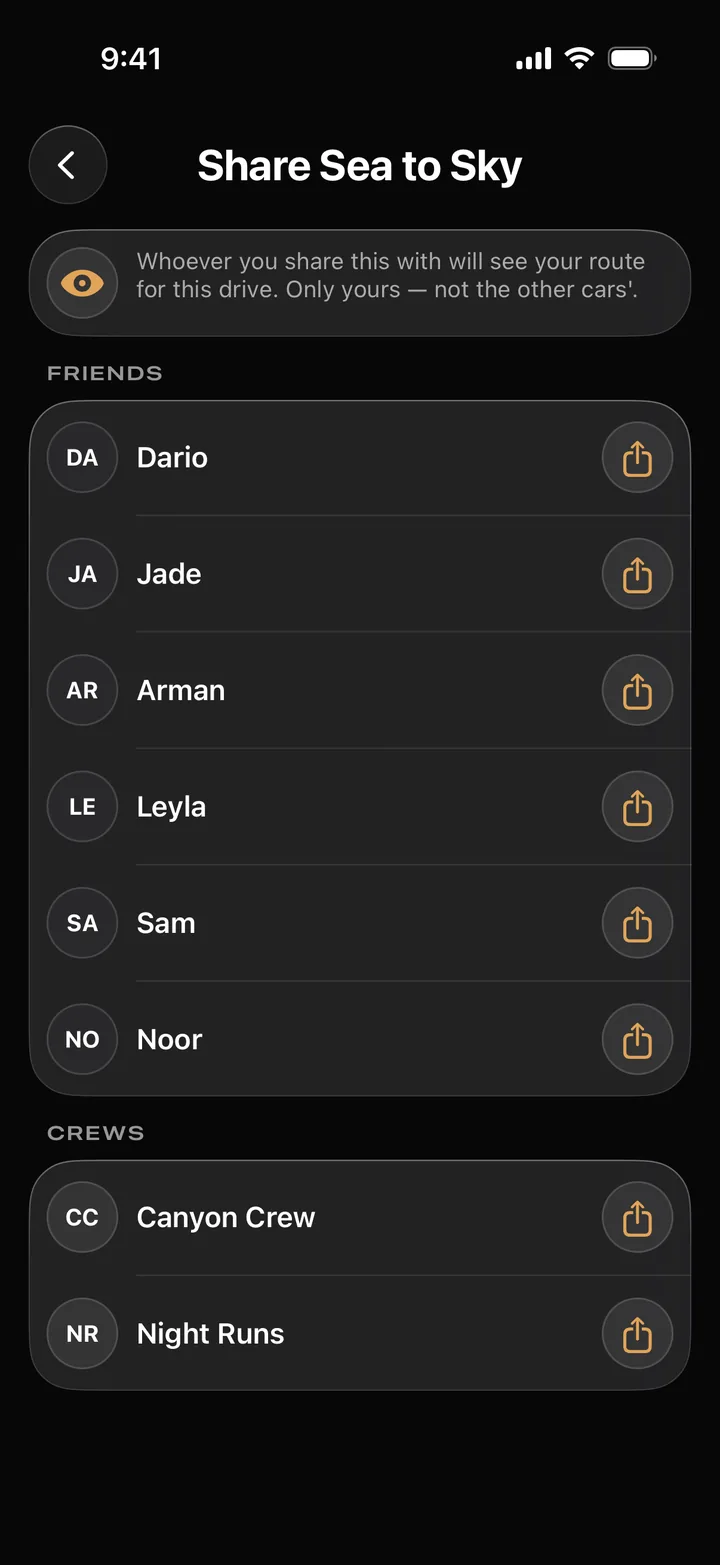
Hold a drive and choose Share to send it to someone.
What’s shared
Sharing a drive sends your own route for it, never the other cars’.
A friend
Tap the share button beside a friend. The drive lands in their bell, under Shared with you.
A crew
Or share it with a whole crew at once.
Settings
Make it yours.
Your profile holds your saved places, your saved routes and the settings: how the cars are drawn, how the map looks and follows you, and what your friends can see.
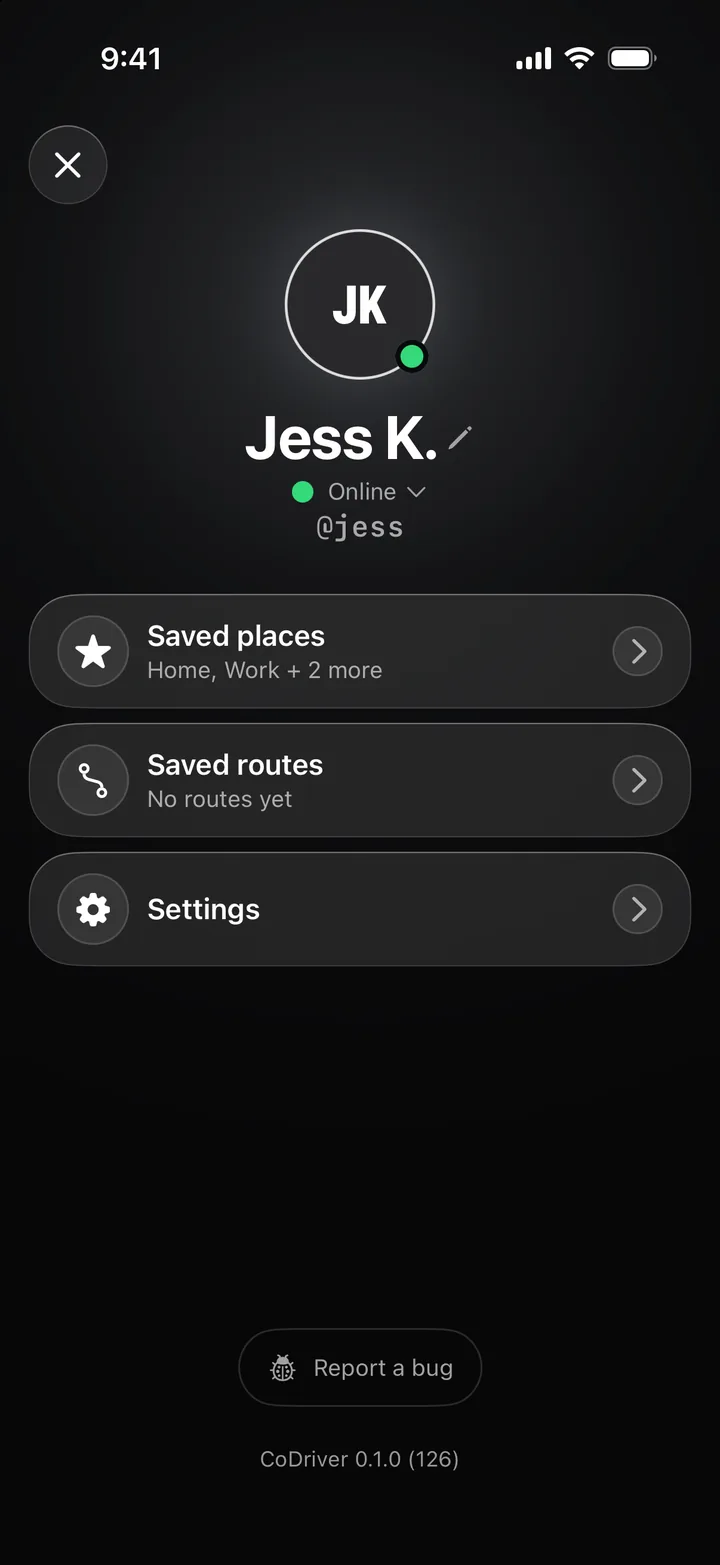
Name
What everyone in your convoy sees. Tap it to change it.
Handle
How friends find you. It stays the same for good.
Saved places
Every place you’ve starred. Tap one to edit it, drag to reorder.
Saved routes
Routes you’ve drawn and saved. Tap one to preview it, then Go.
Settings
Privacy, voice, map and account options, shown next.
Report a bug
Something not working? Describe it and send it to us from here.
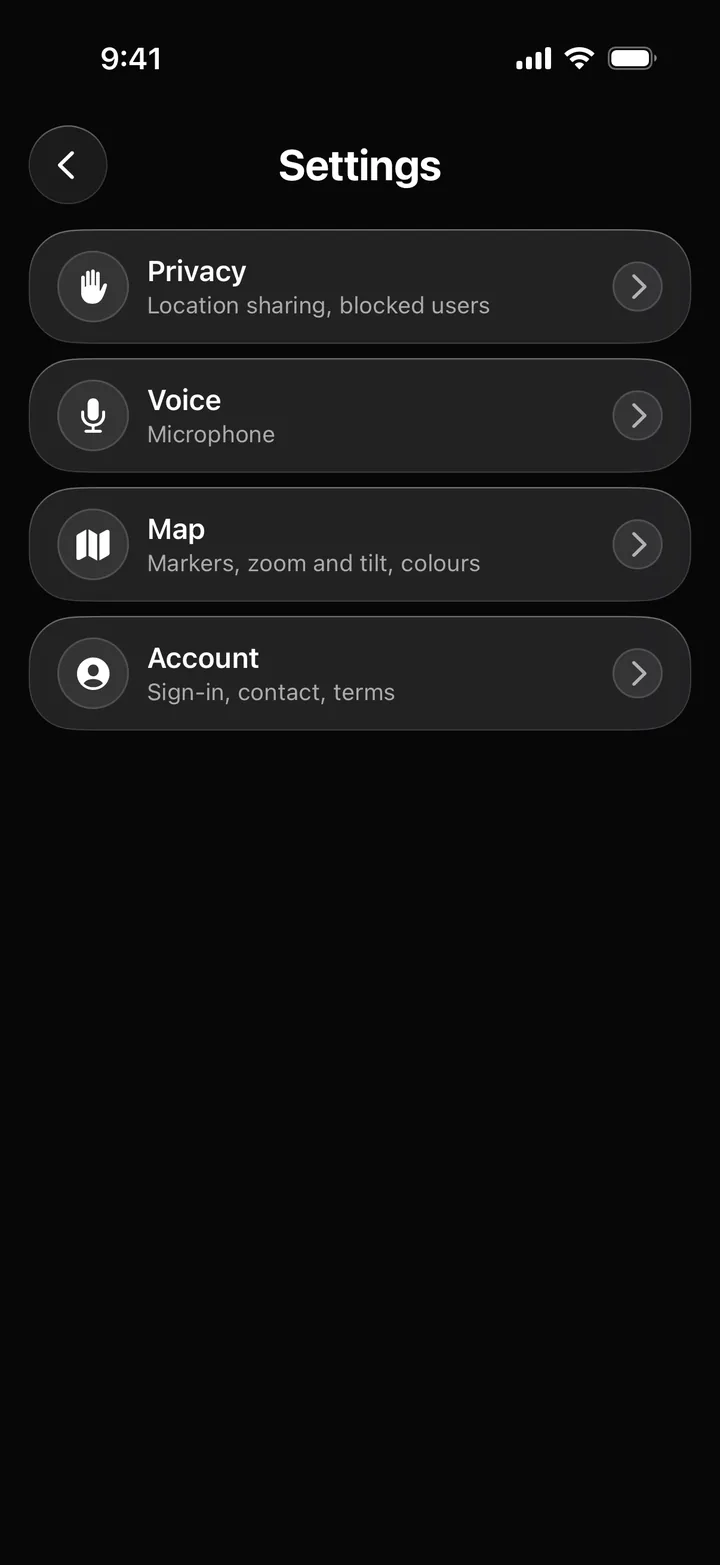
Settings, opened from your profile. A Music row joins the list when a music source needs setting up.
Privacy
Show location to friends when online lets friends see you on their map outside a convoy; you’re asked to confirm before it turns on. Blocked users lists everyone you’ve blocked.
Voice
Phone mic in convoys uses the phone’s own microphone, not the car’s hands-free one. Best left on. A change applies from the next drive.
Map
How the cars are drawn, how the map follows you and its colours, shown next.
Account
Change your password, turn on Email code on sign-in, sign out or delete your account. Contact and the Terms of Service are here too.
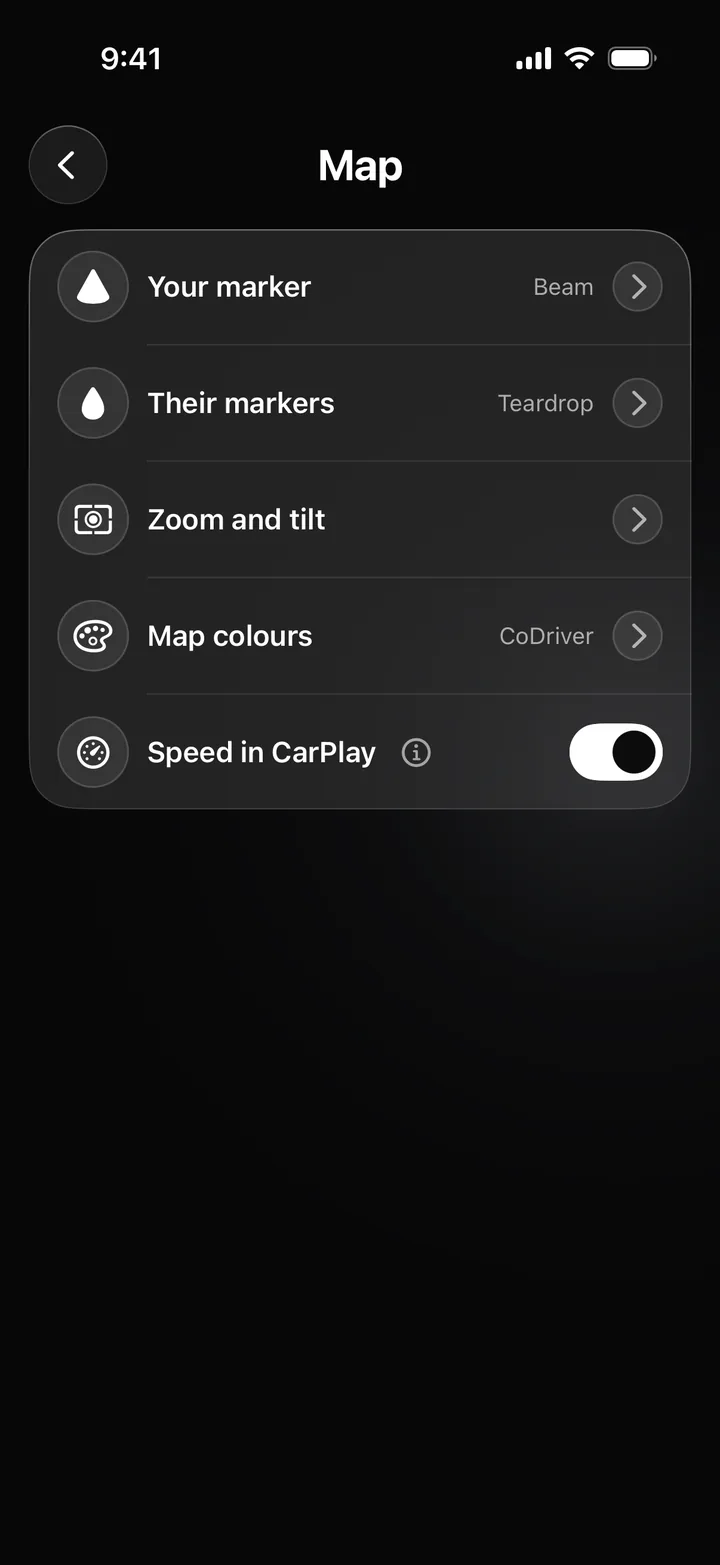
Map: everything about how the map looks and moves.
Your marker
How your own car is drawn.
Their markers
How everyone else is drawn.
Zoom and tilt
How close and how steep the map follows you.
Map colours
A tint for the map, on your phone and in CarPlay.
Speed in CarPlay
Shows or hides your speed on the car’s screen.
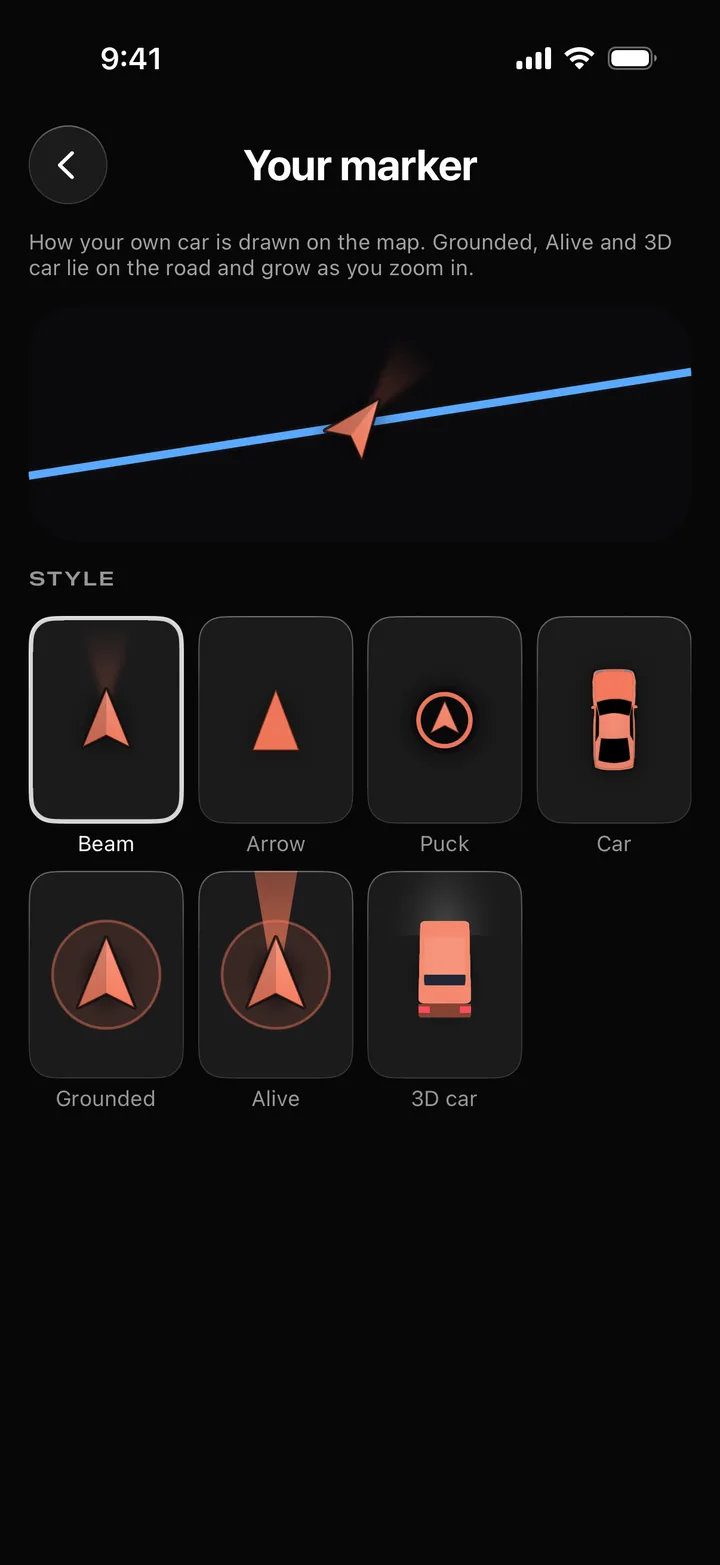
Your marker: how your own car is drawn.
Preview
Shows your choice on a road before you leave the page.
Your marker
Seven styles: Beam, Arrow, Puck, Car, Grounded, Alive and 3D car. The last three lie on the road and grow as you zoom in.
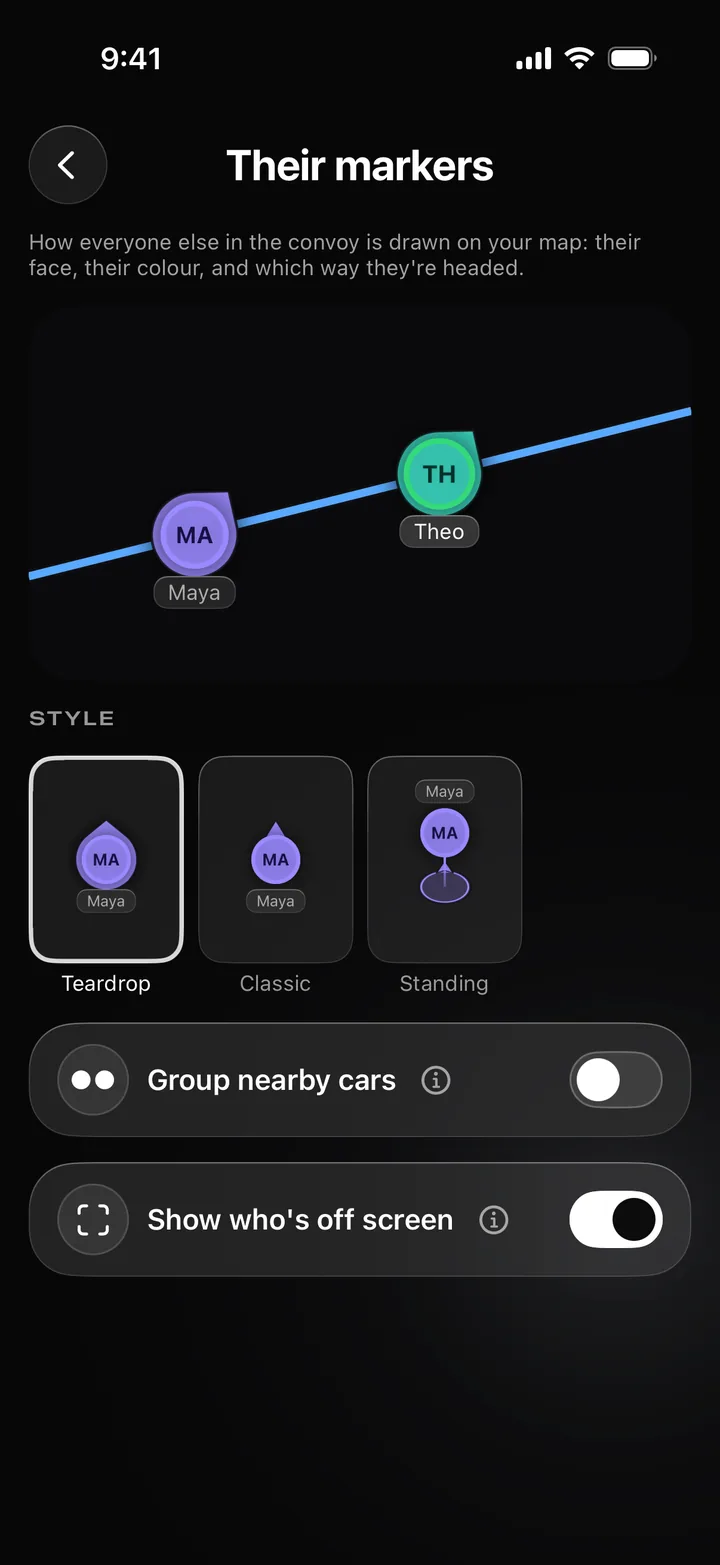
Their markers: how everyone else is drawn.
Their markers
Teardrop, Classic or Standing. Each shows the driver’s initials, their colour and the way they’re heading.
Group nearby cars
Merges cars that overlap into one marker. They split apart as you zoom in.
Who’s off screen
Show who’s off screen turns the faces at the edge of the map on or off.
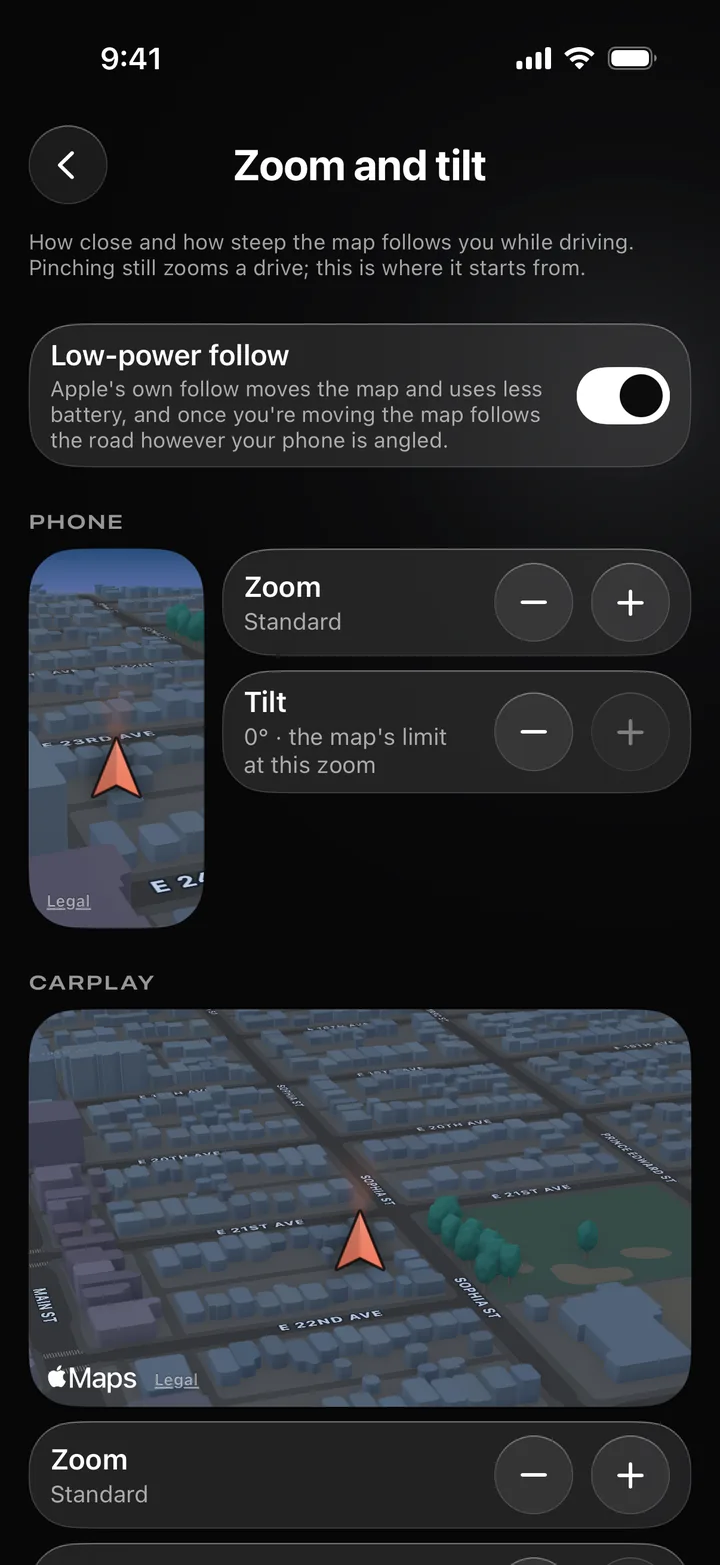
Zoom and tilt: how close and how steep the map follows you.
Low-power follow
An experimental feature, on by default. The map follows you on less battery, and once you’re moving it follows the road however your phone is angled.
Phone
A live preview of how the map follows you on the phone.
CarPlay
The car’s screen keeps its own zoom and tilt, with its own preview.
Zoom
How close the map sits while you drive. Pinching still zooms during a drive; this is where it starts from.
Tilt
How far the map leans toward the horizon.
In the car
CarPlay’s own Zoom, with its Tilt just below.
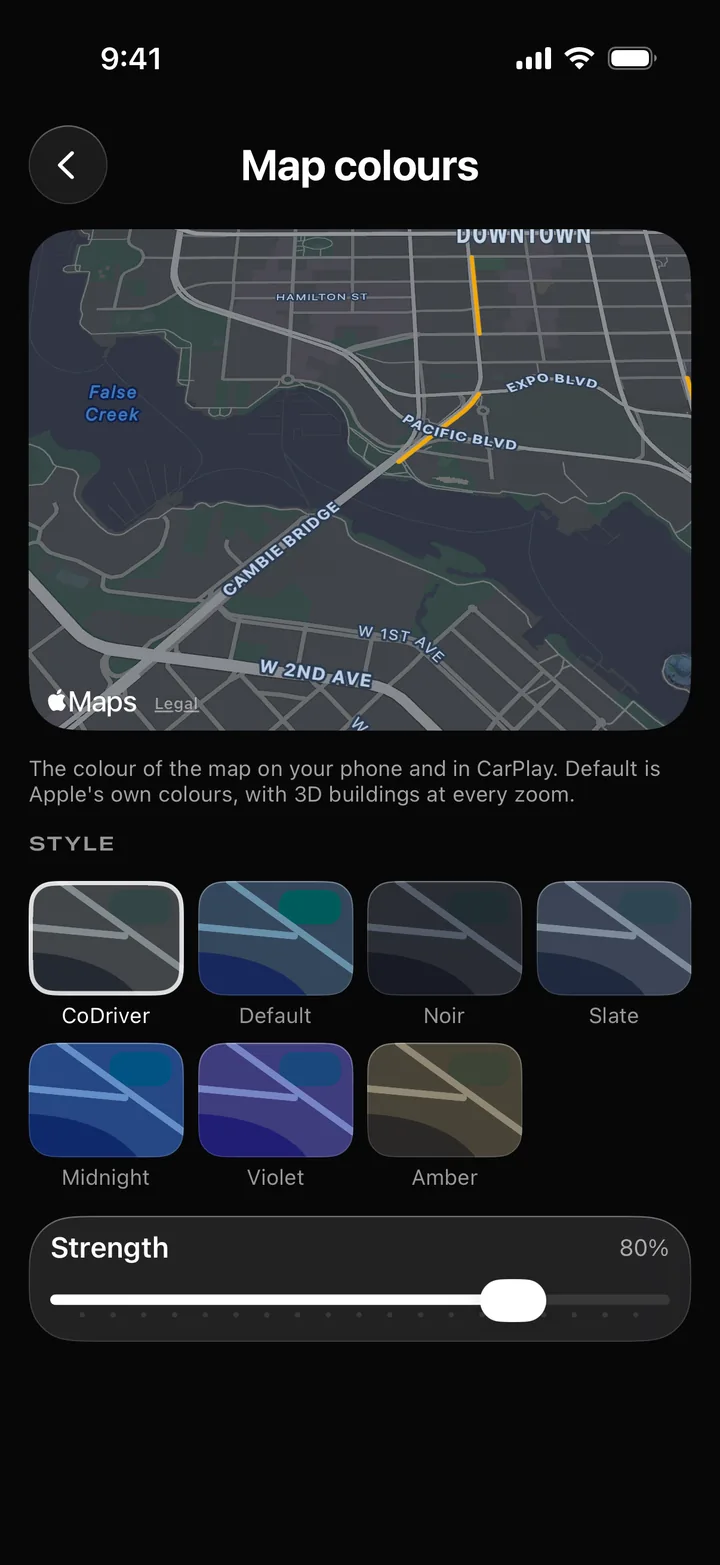
Map colours: the map in a tint of your own.
Preview
A live map shows your choice before you leave the page.
Style
Seven to choose from: CoDriver, Default, Noir, Slate, Midnight, Violet and Amber. Default is Apple’s own colours. Your choice applies on the phone and in CarPlay.
Strength
How strongly the tint is laid over the map.
Something the guide doesn’t answer? Tell us what you were trying to do.
Contact us